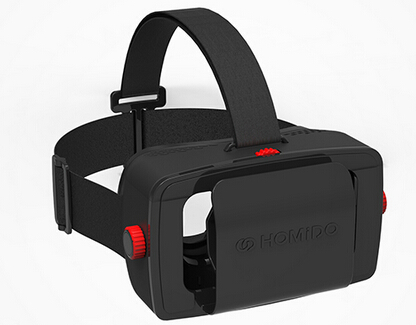
With the prevalence of Samsung Gear VR and Oculus Rift DK2, more and more people know about virtual reality. But Gear VR and Oculus Rift DK2 are so expensive that not anyone can afford it. So the cheap and decent Homido Virtual Reality Headsets is eating up the market share. For those who have many 3D Blu-ray movies but can’t afford an expensive 3D Glasses, Homido VR is a good choice to experience the virtual reality.
Compatibility:
If you want to enjoy 3D Blu -ray on your VR Headsets, including Homido VR, you need to convert 3D Blu-ray to SBS 3D MP4. Pavtube BDMagic is a professional 2D/3D Blu-ray ripping software. With it you can easily convert 2D/3D Blu-ray movies to MKV, AVI, WMV, MOV, MP4 with 3D effect to watch not only on Homido VR but also other 3D Virtual Reality Devices such as Google Cardboard, Zeiss VR One, Gear VR, etc with true theater entertainment at home instead of going to cinema. Since the compatible screen size is limited in 4 - 5.7, if your 3D Blu-ray movies have black area, the software can make you crop the unwanted area to get more movie enjoyment.
Free download and install:


Other Download:
- Pavtube old official address: http://www.pavtube.cn/blu-ray-ripper/
- Cnet Download: http://download.cnet.com/Pavtube-BDMagic/3000-7970_4-75922877.html
How to convert 3D Blu-ray to Homido VR with perfect 3D MP4?
Step 1: Add Blu-ray movies
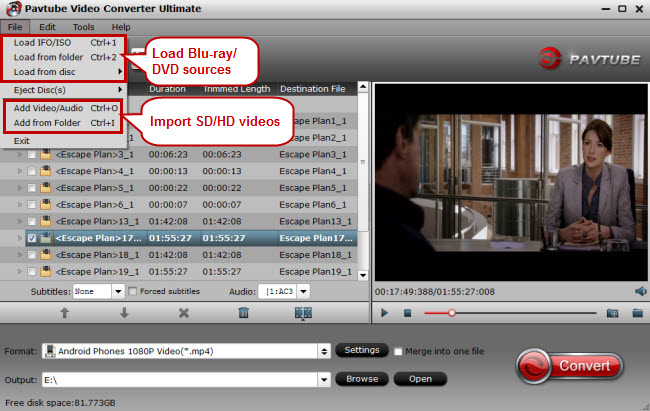
Run the best 3D Blu-ray to VR Headsets Converter your PC and click "File" icon to load movie from your 3D Blu-ray source (Disc, folder, ISO).
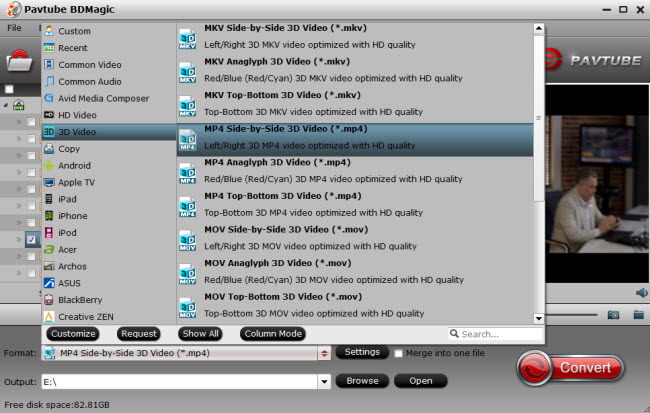
Step 2. Choose an output format
Choose "MP4 Side-by-Side 3D Video(*.mp4) " under "3D Video" category for your Homido VR.
Tip: By clicking “Settings” button, you can adjust: Video Codec, Video Size, Bitrate, Frame Rate, Audio Codec, etc. Just choose the best settings for Homido VR according to the scree resolution of it below:
Step 3: Start 3D Blu-ray Movies conversion
Hit the Convert button to start converting Any 3D Blu-ray movies to 3D MP4 video for playing on Homido VR. After a short conversion, you will get the ripped files.
Choose any phone that Homido is compatible with as aforementioned then transfer the converted 3D Blu-ray movies to it:
Transfer your movies to your iPhone
Connect your iPhone 6 to iTunes
Select your iPhone and go to “Apps” / “File Sharing” / “VR ONE Cinema”
Drag and drop any .mp4 / .mov file into the list of documents.
Important: DRM-protected movies (e.g. purchased movies from iTunes Store) are not supported.
Transfer your movies to your Android phone
Connect your Android phone via USB cable and open Android file transfer
Create a folder “VRCinema” on your phone at root level
Drag and drop any .mp4/.mov file into this folder.
Important: DRM-protected movies (e.g. purchased movies from Google Play) are not supported.
Movies in 720p resolution are best for watching in the VR ONE Cinema.
Connect the phone to Homido VR to enjoy the virtual reality experience.
Related Articles:
Compatibility:
- iPhone 5 or later
- LG G3
- Nexus 4+
- Oneplus One
- Samsung Galaxy S4+
- Samsung Note 3+
- Sony Xperia Z2
If you want to enjoy 3D Blu -ray on your VR Headsets, including Homido VR, you need to convert 3D Blu-ray to SBS 3D MP4. Pavtube BDMagic is a professional 2D/3D Blu-ray ripping software. With it you can easily convert 2D/3D Blu-ray movies to MKV, AVI, WMV, MOV, MP4 with 3D effect to watch not only on Homido VR but also other 3D Virtual Reality Devices such as Google Cardboard, Zeiss VR One, Gear VR, etc with true theater entertainment at home instead of going to cinema. Since the compatible screen size is limited in 4 - 5.7, if your 3D Blu-ray movies have black area, the software can make you crop the unwanted area to get more movie enjoyment.
Free download and install:
Other Download:
- Pavtube old official address: http://www.pavtube.cn/blu-ray-ripper/
- Cnet Download: http://download.cnet.com/Pavtube-BDMagic/3000-7970_4-75922877.html
How to convert 3D Blu-ray to Homido VR with perfect 3D MP4?
Step 1: Add Blu-ray movies
Run the best 3D Blu-ray to VR Headsets Converter your PC and click "File" icon to load movie from your 3D Blu-ray source (Disc, folder, ISO).
Step 2. Choose an output format
Choose "MP4 Side-by-Side 3D Video(*.mp4) " under "3D Video" category for your Homido VR.
Tip: By clicking “Settings” button, you can adjust: Video Codec, Video Size, Bitrate, Frame Rate, Audio Codec, etc. Just choose the best settings for Homido VR according to the scree resolution of it below:
- Limited compatibility: <480×800
- Compatible: HD (720×1280)
- Optimum compatibility: Full HD (1080×1920) or higher
Step 3: Start 3D Blu-ray Movies conversion
Hit the Convert button to start converting Any 3D Blu-ray movies to 3D MP4 video for playing on Homido VR. After a short conversion, you will get the ripped files.
Choose any phone that Homido is compatible with as aforementioned then transfer the converted 3D Blu-ray movies to it:
Transfer your movies to your iPhone
Connect your iPhone 6 to iTunes
Select your iPhone and go to “Apps” / “File Sharing” / “VR ONE Cinema”
Drag and drop any .mp4 / .mov file into the list of documents.
Important: DRM-protected movies (e.g. purchased movies from iTunes Store) are not supported.
Transfer your movies to your Android phone
Connect your Android phone via USB cable and open Android file transfer
Create a folder “VRCinema” on your phone at root level
Drag and drop any .mp4/.mov file into this folder.
Important: DRM-protected movies (e.g. purchased movies from Google Play) are not supported.
Movies in 720p resolution are best for watching in the VR ONE Cinema.
Connect the phone to Homido VR to enjoy the virtual reality experience.
Related Articles:
- How To Watch 3D Blu-Ray With Google Daydream VR?
- Rip 3D Blu-Ray Disc To 3D SBS MP4 For VR Headsets/3D TVs
- Make 3D SBS MP4 Video For Homido VR
- Converting 3D TiVo recordings for Watching on Oculus Rift?CV1/DK2
- Convert 3D MKV/FLV/MTS/ISO to 3D MP4 for Google Daydream VR
- Convert 2D Blu-ray to MP4 SBS 3D Video for Samsung 3D TV?
- How to Watch 3D ISO to Samsung TV?
- Can you Watch 3D Blu-ray on HTC Vive?